How to create an anchor link in WordPress? This guide dives deep into the world of anchor links, explaining their purpose and how they can significantly enhance your WordPress website. Anchor links are essentially clickable links that jump you to specific sections within a page. Imagine a table of contents for your content, but dynamically built right into your site! They improve user experience by allowing quick navigation and provide a structured reading flow.
From basic implementation within the WordPress editor to more advanced techniques using custom code, this comprehensive guide covers every aspect of creating effective anchor links. We’ll explore various use cases, best practices, and even troubleshooting common issues.
Introduction to Anchor Links
Anchor links, also known as internal links, are hyperlinks that jump to a specific section within the same webpage. In WordPress, they allow users to quickly navigate to particular parts of a long article, blog post, or page, enhancing readability and user experience. This is particularly valuable for lengthy content, making it easier for visitors to locate the information they need.Using anchor links in WordPress offers several advantages.
Improved navigation is key; visitors can easily access specific sections, reducing the need to scroll endlessly. This translates to a more user-friendly experience, potentially leading to increased engagement and time spent on the site. Furthermore, anchor links are an essential part of a well-structured website, enhancing the overall user experience and creating a more organized layout.
Benefits of Anchor Links
Implementing anchor links provides numerous benefits, including enhanced user experience, improved , and a more structured website layout.
- Enhanced User Experience: Anchor links significantly improve user experience by enabling quick access to specific sections of a page. This is especially beneficial for long articles or pages, allowing users to navigate to the desired content quickly without lengthy scrolling.
- Improved : While anchor links themselves don’t directly impact search engine rankings, they contribute to a better user experience. A website with a clear structure and easy navigation, facilitated by anchor links, is likely to be favored by users, which indirectly impacts through improved user engagement and time on site.
- Structured Website Layout: Anchor links create a more structured and organized layout on a website, making it easier for users to find specific information. This structured approach improves the overall navigation experience and aids in content organization.
Use Cases for Anchor Links
Anchor links are adaptable to a variety of use cases, making them a valuable tool for various website content types.
Want to make your WordPress site super user-friendly? Creating anchor links is a great way to do that! It’s a simple process, and once you know how, you can easily jump around your website. Speaking of being helpful, I was really impressed by clicta digital agency pledges 1 of all sales to environmental causes , which is a fantastic example of a company giving back to the planet.
Just remember to use the right HTML code and you’ll have smooth-scrolling anchor links in no time!
- Long-form content: Anchor links are extremely useful for lengthy blog posts, articles, or pages. They allow users to jump to specific sections, such as “Pricing,” “FAQ,” or “Contact Us,” without scrolling through the entire page. This increases user engagement and satisfaction by improving the accessibility of the content.
- Table of Contents: A prominent use case is creating a detailed table of contents that links to specific sections within a page. This table of contents can be positioned at the beginning or side of the page, allowing users to navigate directly to the relevant parts.
- Frequently Asked Questions (FAQ): FAQ sections benefit greatly from anchor links. Each question can be linked to the corresponding answer, streamlining user access to the specific information they need.
How Anchor Links Improve User Experience
Anchor links directly enhance user experience by simplifying navigation. This leads to increased engagement and time spent on the website.
- Streamlined Navigation: Anchor links streamline the navigation process, allowing users to quickly find the specific content they’re looking for without scrolling through an extensive amount of text or pages. Users can directly jump to a specific section of the content.
- Enhanced Readability: By allowing users to navigate quickly to the relevant parts of a long article or page, anchor links improve readability. This contributes to a more engaging and informative user experience, reducing the friction associated with lengthy scrolling.
- Improved Engagement: When users can quickly find the information they need, they’re more likely to engage with the content. This can translate into increased time spent on the website, leading to a more positive overall experience.
Best Practices for Anchor Links
Implementing anchor links should align with best practices, leading to improved website optimization.
- Descriptive Anchor Text: Use descriptive anchor text that accurately reflects the content of the linked section. Avoid generic terms like “click here” or “learn more,” as these don’t provide helpful context to users or search engines. For example, instead of “click here for pricing,” use “view pricing details.” This improves both user experience and .
- Relevance and Context: Ensure the anchor links are relevant to the surrounding content and provide context for users. This ensures the links make sense within the flow of the article and improve user navigation.
- Internal Linking Strategy: Anchor links contribute to a robust internal linking strategy. By linking to related content, you guide users to more relevant information and improve the overall website structure.
Creating Anchor Links Using the WordPress Editor
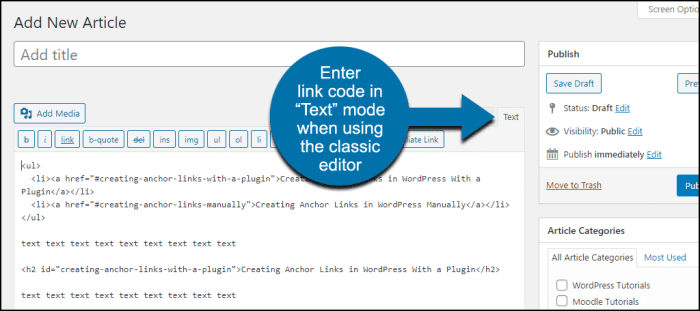
Adding anchor links directly within your WordPress post allows for internal navigation, improving user experience. This method is straightforward and offers more control over the linking process compared to other techniques. By understanding the formatting and steps, you can easily create and manage anchor links within your content.Understanding how to create and implement anchor links in WordPress posts is crucial for creating a user-friendly website.
This involves both creating the anchor point within the content and then linking to it from another location. A well-structured site with effective internal navigation aids readers in exploring your content and makes your website more user-friendly.
Formatting Anchor Links in the Editor
To create an anchor link, you need to add a unique identifier to the element you want to link to. This is done by using the HTML `id` attribute. Within the WordPress editor, you can’t directly insert raw HTML. Instead, use the visual editor to place the text or element, then use the text editor to add the `id` attribute.
For instance, to create an anchor link for a heading, use the HTML `
` tag, then add the `id` attribute to the `
` tag. Remember, this identifier must be unique within the post.
Linking to an Anchor within the Same Post
Linking to an Anchor within the Same Post
Once you’ve created an anchor using the `id` attribute, you can link to it from elsewhere in the same post. This is done by using the standard HTML `a` tag (the anchor tag) with the `href` attribute set to `#` followed by the unique identifier. For example, if you have a heading with the `id=”introduction”` attribute, you can link to it from a different section using ` Introduction`.
Linking to an Anchor in a Different Post or Page
Linking to an anchor in a different post or page follows the same principle as linking within the same post. However, instead of using `#`, you include the full URL of the target page or post, followed by `#` and the unique identifier. For example, if the other post’s URL is `https://www.example.com/another-post` and the anchor’s `id` is `conclusion`, the link would be ` Conclusion `.
Examples of Anchor Link Implementations
Let’s illustrate with a few examples.
- To link to a heading with the ID “contact-us” within the same post, use: ` Contact Us`
- To link to a paragraph with the ID “benefits” within the same post, use: ` Benefits`
- To link to a heading with the ID “faq” in a different post (e.g., `https://www.example.com/faq-page`), use: ` FAQ `
Anchor Link Attributes and Effects
| Attribute | Effect |
|---|---|
| `id` | Defines a unique identifier for the element, allowing other elements to link to it. |
| `href` | Specifies the URL or anchor to link to. For internal links within the same page, it begins with `#`. |
Creating Anchor Links Using Custom Code
Adding anchor links programmatically offers more flexibility than using the WordPress editor. This method allows for precise control over the link’s behavior, especially when dealing with complex layouts or custom functionalities. You can integrate anchor links seamlessly into custom theme designs or plugins, granting more granular control over the user experience.This approach is particularly useful when you need to create anchor links to specific sections within a long page, a custom post type, or a dynamic content area.
By leveraging custom code, you can tailor the linking experience to meet your website’s unique needs.
Custom Code Snippet for Anchor Links
This section Artikels a basic code snippet to create an anchor link. This code can be adapted and extended to suit diverse scenarios. This is a foundational example; more complex implementations might be required depending on your specific needs.“`PHP <?php
function create_anchor_link($section_id, $text)
$anchor_link = '‘ . $text . ‘‘; return $anchor_link;?>“`This function, `create_anchor_link`, takes two arguments: the ID of the section you want to link to and the text to display in the link.
It returns an HTML ` ` tag that creates the anchor link.
Implementing the Code in a WordPress Theme or Plugin
To use this function within your theme or plugin, you’ll need to integrate it into the appropriate template file or plugin functionality. This is a crucial step to ensure the code runs correctly and the anchor links function as intended.
Want to make your WordPress site super user-friendly? Creating anchor links is a great way to do that. It’s a simple process, really, just a few lines of code. But if you’re looking for more ways to drive traffic to your site, checking out a beginners guide to Google Shopping Ads might also be a smart move.
beginners guide to google shopping ads can give you a strong foundation. Once you’ve got the hang of that, you can return to mastering the art of creating anchor links and making your WordPress site a breeze to navigate.
- Locate the template file where you want to display the anchor link. For instance, if you’re linking to a section in a single post, you’d use the `single.php` file.
- Include the `create_anchor_link` function in the relevant section of the template file. This is usually done in the header or the main content area.
- Call the function, providing the section ID and the desired link text as arguments. For example: ` `
Adding the Code Snippet
To add this code, you’ll typically place the function within a plugin or theme file.
- Create a new PHP file within your theme or plugin directory.
- Paste the code snippet into the file.
- Ensure the file is properly included in the relevant WordPress template.
Custom CSS or JavaScript for Enhancements
Custom CSS or JavaScript can enhance the appearance and behavior of the anchor links.
- Custom CSS: Use CSS to style the anchor links differently from regular links. This could include specific colors, fonts, or positioning. For example, you could apply a hover effect to highlight the link when the user moves the mouse over it.
- Custom JavaScript: JavaScript can be used to add interactive elements to the anchor links. For example, you could use JavaScript to add smooth scrolling to the target section when the link is clicked.
Shortcodes and Custom Functions
Shortcodes and custom functions provide more structured ways to create anchor links.
Want to spice up your WordPress site with smooth navigation? Creating anchor links is a simple way to do this. You can easily add them to your posts or pages. But, while you’re at it, consider how you can revolutionize your PPC game with cutting-edge AI tools like GPT. ways to revolutionize your ppc game with gpt can dramatically improve your ad campaigns.
Once you’ve mastered those advanced techniques, you’ll be able to focus back on perfecting your anchor link strategy for a superior user experience.
- Shortcodes: Define a shortcode to create anchor links. This makes the process more user-friendly. A shortcode allows users to embed the anchor link within the content using a specific tag. This is cleaner and more maintainable.
- Custom Functions: Create a function to generate the anchor link dynamically, based on the content. This can be particularly useful if you need to generate anchor links for dynamic content, like posts or pages. This level of control is needed for complex implementations.
Comparison Table, How to create an anchor link in wordpress
| Feature | WordPress Editor | Custom Code |
|---|---|---|
| Ease of Use | High | Medium |
| Control | Limited | High |
| Flexibility | Low | High |
| Customization | Limited | High |
| Maintenance | Moderate | High |
Best Practices for Anchor Link Implementation
Anchor links, often overlooked, are crucial for improving user experience and . They allow users to quickly navigate to specific sections within a page, enhancing readability and engagement. Implementing them effectively requires careful consideration of length, format, relevance, and overall content structure.Implementing anchor links strategically is a key factor in creating a seamless and user-friendly website. By following best practices, you can improve both the user experience and the search engine optimization of your content.
Optimal Length and Format for Anchor Text
Clear and concise anchor text is essential for user comprehension and search engine indexing. Avoid overly long or overly short anchor text. An ideal length balances clarity and conciseness. Aim for text that accurately describes the linked section without being cumbersome. Using descriptive s while keeping the text under 10-15 words is generally recommended.
Avoiding Spammy Anchor Links
Using anchor links for manipulative practices is detrimental and can result in penalties. Avoid using irrelevant or overly -stuffed anchor text. Anchor links should accurately represent the content they are linking to, not artificially inflate density.

Importance of Relevant Anchor Text
Relevant anchor text improves user experience and aids search engines in understanding the content’s context. Using text that precisely reflects the linked section’s topic enhances the overall user journey. It allows users to easily locate the information they need.
Implications of Using Generic Anchor Text
Generic anchor text, such as “Click here,” or “More information,” provides little to no value to users or search engines. Such text fails to accurately describe the linked section, decreasing user engagement and potentially hindering . Specific and accurate anchor text improves user understanding.
Structuring Content for Optimal Anchor Link Use
Well-structured content makes anchor links more effective. Organizing content into logical sections, each with a clear purpose, allows for relevant anchor links. A clear and logical hierarchy makes navigation easy for both users and search engines.
Creating User-Friendly Anchor Links
User-friendly anchor links seamlessly integrate into the overall page design. The links should be clearly visible and easily identifiable without disrupting the flow of the content. Users should be able to understand the purpose of the link and the content it points to without additional effort.
Troubleshooting Anchor Link Issues
Anchor links, while essential for user navigation, can sometimes malfunction. Understanding the common pitfalls and troubleshooting steps can save significant time and effort. This section details how to identify and resolve problems with your WordPress anchor links.Troubleshooting anchor links requires a methodical approach. Knowing where to look for errors and how to isolate the problem is crucial for effective resolution.
This guide provides a structured approach to debugging anchor links in WordPress, encompassing both editor-based and code-related issues.
Common Anchor Link Problems
Incorrectly formatted anchor IDs or target attributes are frequent causes of broken links. Typos, missing characters, or inconsistencies in capitalization can lead to unexpected behavior. Furthermore, conflicting CSS or JavaScript can inadvertently override the anchor functionality, preventing the desired effect.
Identifying Broken Anchor Links
Visual inspection is a primary troubleshooting step. Open the page in a web browser and manually click on the links. If the link doesn’t work or takes you to the wrong section, the anchor link is broken. Using the browser’s developer tools, inspect the HTML elements. Verify the correct syntax of the anchor tag’s attributes and the target ID.
Debugging Anchor Link Functionality
Examine the website’s source code (HTML) to verify the anchor link’s structure. Check for correct ID attributes on the target section. Look for any JavaScript or CSS code that might interfere with the anchor functionality. Ensuring the link and target element are in the same document is a key aspect of troubleshooting.
Diagnosing and Resolving Anchor Link Conflicts
Conflicts arise when multiple plugins or themes interfere with the anchor functionality. Disabling plugins one by one can help pinpoint the problematic component. Updating outdated themes or plugins can sometimes resolve conflicts.
Example Error Messages and Solutions
A common error message is a “page not found” error. This usually indicates that the anchor ID is incorrect or the target element is missing. Ensure the ID in the link and the target section are precisely the same. Another error could be an unexpected jump to the wrong section. Verify the ID in the link against the target element’s ID.
Troubleshooting Steps and Potential Solutions
| Troubleshooting Step | Potential Solution |
|---|---|
| Verify anchor ID correctness | Double-check the ID in the link and the target element for accuracy and case sensitivity. |
| Inspect HTML for correct structure | Ensure the anchor tag and target element have the correct attributes and are within the same document. |
| Inspect CSS/JavaScript conflicts | Temporarily disable plugins or themes to isolate potential conflicts. Check for CSS rules that might override anchor functionality. |
| Update themes and plugins | Outdated themes or plugins can introduce compatibility issues. Ensure all components are up-to-date. |
| Clear browser cache and cookies | Sometimes, cached data can cause issues with anchor links. Clearing the cache can resolve the problem. |
Advanced Techniques for Anchor Links
Mastering anchor links in WordPress goes beyond the basics. This section delves into sophisticated techniques for integrating them seamlessly into your website’s design, functionality, and overall user experience. From enhancing image interactions to dynamically generating links, we’ll explore methods to elevate your anchor link implementation.Using anchor links effectively empowers users to navigate your site with ease, streamlining their journey to specific content areas.
This precision improves the user experience and contributes to a more professional and user-friendly website.
Using Anchor Links with Images and Galleries
Adding anchor links to images and galleries provides a visually appealing way to navigate to specific content sections. This technique is particularly useful for showcasing large amounts of information or when you want to provide direct access to details related to specific images. You can create links that take users to specific areas of a page or even to other pages.
This approach can be crucial in galleries, where users may want to jump directly to a specific image or the related information.
Creating Anchor Links for Specific Elements Within a Page
Anchor links are not limited to entire sections of a page. They can target precise elements within a page. This is especially valuable for lengthy articles or content areas that have distinct parts or sub-sections. This precision allows for a user-friendly way to quickly access information. For example, you could link to a specific table or a detailed description of a product feature.
Anchor Links in Conjunction with Other WordPress Features
Anchor links can synergize with various WordPress features to enhance functionality. For instance, you can combine anchor links with custom post types or custom fields to create dynamic and context-sensitive navigation. This can lead to enhanced user experience. For example, if you have a portfolio page with different projects, you could create anchor links that allow users to jump directly to a specific project’s details.
Implementing Anchor Links in a Complex Layout
In complex layouts, anchor links play a crucial role in directing users to specific elements or areas. This is especially useful in pages with multiple columns, sidebars, or sections. A thoughtful use of anchor links can simplify navigation for users who need to quickly access specific information.
Dynamically Creating Anchor Links Using JavaScript or PHP
Dynamically generating anchor links through JavaScript or PHP allows for greater flexibility and responsiveness. This is especially valuable in situations where content is generated programmatically. For instance, you might use PHP to create anchor links for each post in a blog archive.
Making Anchor Links Visually Appealing and Intuitive
Visually distinct anchor links contribute to a positive user experience. Use appropriate styles and colors to differentiate anchor links from regular text and make them easily noticeable. Clear visual cues ensure users quickly locate and engage with anchor links. For example, using a different font weight or color can draw attention to the anchor link without being distracting.
Wrap-Up: How To Create An Anchor Link In WordPress
In conclusion, creating anchor links in WordPress is a valuable skill for any website owner. By understanding the various methods, best practices, and troubleshooting techniques Artikeld in this guide, you can seamlessly integrate anchor links into your website, ultimately leading to a more user-friendly and -optimized experience. Whether you’re a seasoned WordPress user or just starting, this guide equips you with the knowledge to craft professional and effective anchor links.