How to properly change move and delete WordPress categories is a crucial skill for any WordPress user. Whether you’re reorganizing your site’s content structure, refining your strategy, or simply tidying up your existing categories, understanding the nuances of moving, renaming, and deleting categories is essential. This guide will walk you through the entire process, from basic concepts to advanced techniques, ensuring you manage your categories with precision and efficiency.
WordPress categories are fundamental to website organization. They help structure content, improve user navigation, and boost search engine optimization (). This comprehensive guide covers every step, from understanding the basics of WordPress categories to tackling more complex issues like moving and deleting categories, ensuring your site’s categories are always optimized for both search engines and users.
Introduction to WordPress Categories
WordPress categories are fundamental organizational units within a website built on the platform. They act as containers for grouping related posts, making it easier for users to navigate and find specific content. Think of them as folders within a file system, but tailored for web content. Effective category management significantly impacts user experience and search engine optimization ().Properly structured categories enhance user navigation, making it intuitive for visitors to discover relevant articles.
Well-defined categories also aid search engines in understanding the content of your site, improving its visibility in search results. This leads to increased organic traffic and a higher likelihood of attracting the target audience. The need to modify categories often arises when you want to restructure content, consolidate related topics, or simply update your site’s organization.
Purpose and Importance of Categories
Categories play a vital role in both user experience and search engine optimization. Well-organized categories make it easy for users to find specific information. They improve the overall site structure, enabling a smooth and intuitive browsing experience. This positive user experience is a key factor in site retention and user engagement. Categories also play a crucial role in by helping search engines understand the thematic structure of your site.
This leads to improved search rankings, driving more organic traffic to your website.
Common Reasons for Modifying Categories
Several situations might necessitate adjustments to your WordPress categories. Merging categories can consolidate similar topics, making the site’s structure more concise and user-friendly. Renaming categories allows you to refine their descriptions, ensuring accuracy and clarity in content organization. Deleting categories is sometimes necessary when topics become irrelevant or are combined with others.
WordPress Category Interface Overview
The WordPress interface provides tools for managing categories. The Categories section in the admin dashboard allows you to view, add, edit, and delete categories. A straightforward user interface enables quick access to these tools. You can easily manage all aspects of your categories within the platform. This streamlined process allows you to efficiently maintain your site’s structure.
Types of WordPress Categories
Different types of category structures exist, each impacting the organization and accessibility of your content.
| Category Type | Description |
|---|---|
| Hierarchical | Categories are arranged in a tree-like structure, allowing for subcategories. This structure enables a detailed organization, creating a clear hierarchy of topics. |
| Flat | Categories are not nested; they exist at the same level, offering a simple structure for topics that are not deeply interconnected. This structure is ideal for sites with a limited number of broad topics. |
Moving WordPress Categories
Moving WordPress categories is a crucial aspect of website management, allowing you to reorganize your site’s structure and maintain a logical flow for users. This process involves not just shifting categories but also ensuring that associated posts are correctly updated to reflect the new arrangement. Understanding the various methods and their implications is essential for maintaining a well-structured website.Categorization is fundamental to website organization, and correctly moving categories ensures a seamless user experience.
By understanding the process, you can maintain the integrity of your content and ensure that visitors can easily navigate your site.
Methods for Moving Categories
Different approaches exist for relocating WordPress categories, each with its own set of advantages and disadvantages. Understanding these distinctions will allow you to choose the most appropriate method for your specific needs.
Manual Category Movement
Manually moving categories is a straightforward process that does not require any plugins. This method provides complete control over the process, but it’s not suitable for large-scale category adjustments.
- Identify the category you wish to move. This involves locating the category within the WordPress admin panel.
- Determine the new parent category. The new location within the hierarchy needs to be identified.
- Update the category’s parent. This involves navigating to the category in the WordPress admin and selecting the new parent from the dropdown menu. Carefully consider the hierarchy you want to maintain.
- Verify the move. After making the change, confirm that the category is now positioned in the desired location within the WordPress admin interface.
Using Plugins for Category Movement
Plugins offer a more automated and potentially more efficient solution for moving categories, particularly for complex arrangements. These tools can streamline the process, reducing the risk of errors when dealing with large numbers of categories and posts.
- Choose a reputable category management plugin. Thoroughly research and select a plugin that suits your needs and has positive user reviews.
- Install and activate the chosen plugin. Follow the plugin’s instructions to install and activate the selected plugin within the WordPress admin panel.
- Utilize the plugin’s interface for moving categories. The plugin’s interface provides a user-friendly way to move and rename categories, potentially with options for batch processing.
- Review the results. After the move, meticulously review the new category structure in the WordPress admin interface to ensure accuracy.
Renaming Categories
Renaming categories requires updating the category name while maintaining the integrity of associated posts. This process prevents loss of content and ensures a smooth transition for users.
- Locate the category in the WordPress admin panel. This involves navigating to the categories section within the WordPress admin.
- Change the category name in the admin interface. Use the category editor to update the name to the desired title.
- Verify the name change. Double-check that the name has been updated correctly.
- Ensure posts remain associated. Verify that posts remain correctly associated with the renamed category.
Comparison of Methods
The table below summarizes the pros and cons of manual and plugin-based methods for moving categories.
| Method | Pros | Cons |
|---|---|---|
| Manual | Complete control, no dependencies | Time-consuming for large-scale moves, potential for errors |
| Plugin-based | Automation, potentially faster for large-scale moves, often includes additional features | Plugin dependency, potential compatibility issues |
Deleting WordPress Categories
Deleting WordPress categories can seem straightforward, but improper action can lead to broken links and unexpected consequences for your site. Understanding the process and potential pitfalls is crucial for maintaining a healthy and functioning WordPress site. Carefully following the steps detailed below will ensure a clean and efficient deletion process.
Potential Consequences of Deleting Categories Without Caution
Deleting categories without proper planning can lead to a cascade of problems. Incorrectly deleting a category that’s linked to many posts could result in those posts becoming orphaned, meaning they no longer belong to any category. This can negatively impact , as search engines may struggle to index those posts properly. Furthermore, users might be unable to find relevant content on your website.
Knowing how to properly change, move, and delete WordPress categories is crucial for website organization. If you’re a business owner in Jonesville, NC, needing a fresh website design, consider exploring the options available from local web designers like those found at jonesville nc web design. They can help you with more than just aesthetics; a well-structured website with correctly managed categories is key for SEO and user experience, ultimately boosting your online presence.
So, understanding the ins and outs of WordPress category management is essential for a successful online presence, regardless of your location.
Steps to Remove a Category Without Affecting Linked Posts
Before deleting a category, it’s essential to understand how it’s connected to your posts. A category often links to multiple posts, and the deletion of a category directly impacts those posts if not properly handled. To avoid this, you need to first detach the category from posts that should not be affected.
Learning how to properly change, move, and delete WordPress categories is crucial for website organization. While that’s important, it’s also interesting to see how SEO factors like adding emojis to meta descriptions might impact your site’s ranking. For example, a recent study on SEO test results regarding adding emojis to meta descriptions shows some surprising findings.
Ultimately, knowing how to properly manage your WordPress categories is key to a well-structured site.
Dealing with Orphaned Posts After Category Deletion
Orphaned posts, those that lose their category association, require careful attention. Simply deleting the category won’t automatically reassign these posts to other categories. Manually reviewing and re-categorizing these posts is essential to maintain their searchability and usability. This process ensures your content remains accessible to visitors and search engines.
Step-by-Step Guide for Deleting Categories
This step-by-step guide provides a clear process for deleting WordPress categories safely:
- Access the Categories Page: Log in to your WordPress dashboard and navigate to the “Categories” section. This is usually under the “Posts” or “Pages” menu.
- Select the Category to Delete: Locate the category you wish to remove. Be certain you have no further need for this category and are aware of its impact on your site.
- Review Linked Posts: Before proceeding, verify the posts associated with the category. Identify if any of these posts should remain in the system. Consider if re-categorizing the posts is a better option.
- Detach Posts from Category (Optional): If needed, detach posts from the category by editing the individual post and removing the category. This step is crucial to prevent orphaned posts.
- Delete the Category: Once you’re confident the category is no longer needed and linked posts have been managed, select the category to delete from the WordPress interface. There is usually a “Delete” button or option.
- Verify Deletion: After deletion, refresh the page to confirm the category is removed. Review linked posts to ensure they are properly re-categorized or otherwise handled.
Common Errors During Category Deletion and Their Solutions
| Error | Solution |
|---|---|
| Attempting to delete a category with linked posts without first detaching them. | Review linked posts and detach them from the category before attempting deletion. |
| Accidentally deleting a category that was essential to the website’s organization. | Backup your website before any category deletion and proceed with caution. If the deletion is unintended, revert your website to a previous backup. |
| Not properly re-categorizing orphaned posts. | Manually review and re-categorize orphaned posts. |
Best Practices for Managing Categories: How To Properly Change Move And Delete WordPress Categories
Maintaining a well-organized category structure is crucial for a user-friendly WordPress website. A clear and logical system ensures visitors can easily find the content they’re looking for, which ultimately improves user experience and search engine optimization (). Effective category management requires careful planning and consistent application of best practices.A well-structured category system not only aids users but also simplifies tasks for website administrators.
Knowing how to properly change, move, and delete WordPress categories is crucial for website organization. This task, while straightforward, can significantly impact your site’s structure. To really understand how to do this effectively, you need to consider how this relates to your overall website analytics. Learning about Google Analytics 4 (GA4) getting started with google analytics 4 ga4 will give you valuable insights into user behavior and website performance.
This knowledge will ultimately help you make informed decisions when managing your categories, ensuring your site is well-structured and user-friendly. Finally, a solid grasp of WordPress category management is vital for maintaining a functional and engaging online presence.
Efficient navigation enhances the overall site experience, making it more appealing to both visitors and the site owner. This section will Artikel key strategies for building and maintaining an optimal category structure in WordPress.
Consistent Naming Conventions, How to properly change move and delete wordpress categories
Consistent naming conventions are essential for maintaining a clean and organized category structure. Inconsistency can lead to confusion and make it difficult for both users and administrators to navigate the website. Following a standardized naming scheme ensures that categories are easily recognizable and searchable.
- Use lowercase letters and underscores to separate words, for example, “travel_photography” instead of “Travel Photography” or “travel-photography”.
- Keep names concise and descriptive, avoiding overly long or ambiguous titles. Aim for accuracy and clarity. For example, “Travel Photography” is better than “Beautiful Photos from Around the Globe”.
- Maintain consistency in capitalization and punctuation. Using a consistent format across all categories enhances readability.
- Use s that accurately reflect the content within the category. This aids search engines and users in finding relevant information.
Logical and User-Friendly Category Systems
A well-designed category system facilitates easy navigation and helps visitors find the information they need. Consider the typical user’s needs and the structure of your website when creating your category system.
- Create a hierarchy of categories. A hierarchical structure, with broader categories encompassing more specific subcategories, mirrors real-world organization and simplifies site navigation. This is particularly beneficial for large websites with extensive content.
- Group related content together. Organize categories in a way that logically groups similar posts. For example, all recipes could fall under a “Recipes” category, with subcategories for “Breakfast,” “Lunch,” and “Dinner.”
- Avoid overly broad or overly narrow categories. Ensure categories are comprehensive enough to encompass relevant content but not so broad that they become useless. Too many narrow categories can make navigation cumbersome. Consider your target audience and content volume.
Examples of Effective Category Structures
The optimal category structure varies depending on the website’s purpose. For example, a travel blog might use categories like “Destinations,” “Activities,” and “Tips,” with further subcategories for specific locations or activities. A recipe blog might use categories like “Cuisine,” “Dish Type,” and “Occasion.”
| Website Type | Example Category Structure |
|---|---|
| Travel Blog | Destinations (Europe, Asia, North America), Activities (Hiking, Food Tours), Tips (Packing, Budgeting) |
| Recipe Blog | Cuisine (Italian, Mexican, American), Dish Type (Appetizers, Main Courses, Desserts), Occasion (Holiday, Weeknight) |
| E-commerce Site | Product Categories (Electronics, Clothing, Home Goods), Brand, Price Range |
Good vs. Bad Category Naming Conventions
| Good Naming Conventions | Bad Naming Conventions |
|---|---|
| Travel Photography | Best Photos |
| Italian Cuisine | Yummy Italian Food |
| Electronics – Smartphones | Phones |
| Health & Fitness – Workouts | Fitness Activities |
Advanced Techniques for Category Management
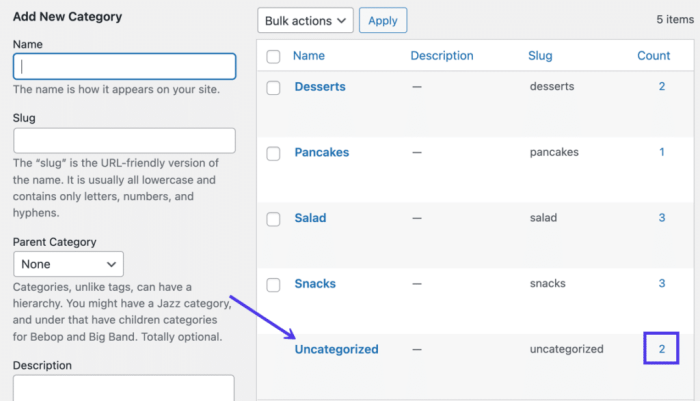
Taking WordPress category management to the next level involves customizing category behavior, leveraging plugins, and integrating categories with other features. This section dives into these advanced techniques, equipping you with the skills to create a highly functional and efficient category system for your site. Understanding these nuances allows you to tailor the WordPress category system to your specific needs and improve user experience.Beyond the basic creation and manipulation of categories, advanced techniques offer a more granular level of control.
By exploring plugins, custom templates, and integration points, you can dramatically improve the functionality and usefulness of categories within your WordPress site.

Customizing Category Behavior
WordPress’s built-in category system offers a foundation for managing content. However, sometimes you need more granular control. Customizing category behavior involves altering how categories function. This can include things like assigning specific template files for display, controlling the visibility of categories on different pages, or changing how categories are sorted and displayed in lists. This can enhance user experience and streamline the content organization.
For example, a specialized e-commerce site might need categories to include specific product filtering options, not just basic display.
Using Plugins to Enhance Category Management
Several plugins are designed to enhance category management. These plugins can automate tasks, add new features, and integrate with other WordPress components. A significant benefit of using plugins is that they provide solutions for specialized needs, allowing for more advanced functionality without requiring extensive custom coding. This significantly saves time and resources, especially for users who don’t have a strong programming background.
Examples of Custom Category Templates
Custom category templates allow for specific layouts and displays for each category. For instance, a blog might use different templates for displaying categories like “News,” “Technology,” or “Culture.” By using template files specific to each category, you can customize the presentation to highlight relevant content or provide a unique experience for the visitor. These templates can include different layouts, custom fields, or even integrate with other plugins.
This ensures a consistent design for each category and allows for more targeted content display.
Integrating Categories with Other WordPress Features
Categories are powerful when integrated with other WordPress features. For example, you can use categories to filter posts in search results, create custom menus based on categories, or link categories to specific custom post types. This comprehensive approach ensures seamless functionality and provides users with more organized content discovery. This approach is valuable for creating a well-structured site, especially for those with large amounts of content.
By connecting categories to other aspects of the site, you create a more intuitive and efficient user experience.
Popular WordPress Plugins for Advanced Category Management
The following table highlights popular plugins for advanced category management, showcasing their key features and functionalities. Using these plugins can greatly simplify the process of managing and displaying categories.
| Plugin Name | Key Features | Description |
|---|---|---|
| Advanced Custom Fields | Custom fields for categories | Allows adding custom data fields to categories, enabling detailed information storage. |
| Category Manager | Enhanced category management tools | Provides more advanced options for managing categories, such as custom sorting and filtering. |
| Taxonomy Manager | Advanced taxonomy management | Offers a more comprehensive approach to managing taxonomies, including categories and tags, with features like bulk actions and custom display options. |
| WP-PageNavi | Advanced pagination for categories | Provides better control over pagination for category archives, allowing for customized display and better user experience. |
Troubleshooting Common Issues
WordPress category management, while straightforward, can sometimes present unexpected challenges. Understanding common pitfalls and their solutions is crucial for maintaining a smoothly functioning website. This section delves into troubleshooting various errors, from simple category movement problems to more complex issues involving orphaned posts and hierarchical structure.Identifying and resolving these problems efficiently saves time and prevents potential website disruptions.
The following sections provide step-by-step guidance to tackle common errors, ensuring a seamless category management experience.
Category Movement Errors
Category movement, while generally simple, can encounter hiccups. Errors may arise from conflicting category relationships or issues with the WordPress database. Incorrectly moving categories can lead to orphaned posts or broken category links. Thorough checks are necessary to avoid such complications.
- Conflicting Category Relationships: Ensure that the category you’re moving isn’t a parent or child of another category. Attempting to move a parent category while its child categories remain in the original location can cause issues. Moving a child category while its parent remains in a different location might result in similar problems.
- Database Integrity Issues: Problems with the WordPress database can prevent successful category movement. Running database repair tools can often resolve such errors. This step should be undertaken cautiously as improper database manipulation can lead to data loss.
- Orphaned Posts: Moving a category that a post is assigned to can create orphaned posts. These posts become detached from any category and can negatively impact display and search functionality. This is usually addressed by re-assigning the posts to the correct category or creating a new one if the category is deleted.
Deleting Categories
Deleting categories is a straightforward process, but potential problems can arise. Incorrect deletions can lead to lost data or website functionality. It’s crucial to understand the implications before making any changes.
- Deleting Categories with Associated Posts: Deleting a category containing posts will leave those posts without a category. It is essential to reassign those posts to a different category or create a new one before deletion. Alternatively, the posts can be manually reassigned after the deletion, ensuring no loss of data.
- Unintended Hierarchy Changes: Carefully consider the category hierarchy. Deleting a parent category will often affect child categories, causing unexpected results. A thorough review of the category structure before deletion is crucial to avoid this issue. This ensures a structured approach to managing category hierarchy.
Category Hierarchy Issues
Problems with the category hierarchy are common. Misconfigurations or improper nesting can result in confusing website structures and searching. Correctly addressing these issues is key for site organization.
- Circular Category Relationships: Circular category relationships (where a category is both a parent and a child of another) can cause unexpected results in navigation and display. Identifying and resolving these conflicts is necessary to prevent site issues. Review the structure carefully to spot and fix circular links.
- Duplicate Categories: Duplicate categories can confuse users and search engines. Ensuring each category is unique is essential for proper website organization. Use a search function to identify and merge any duplicates, avoiding redundancy.
Troubleshooting Orphaned Posts
Orphaned posts are posts detached from any category. This can lead to difficulties in displaying and managing content. Identifying and re-assigning them is crucial for a well-organized website.
- Locate Orphaned Posts: Use the WordPress admin panel to find posts without assigned categories. A search function within the posts section will help in locating orphaned content.
- Re-assign to Appropriate Categories: Carefully examine the content of the orphaned posts and assign them to the relevant categories. This will restore their proper organization within the website.
- Create New Category (if necessary): If the orphaned post belongs to a new or deleted category, creating a new category and re-assigning the post to it will resolve the issue.
Last Point
In conclusion, mastering how to properly change, move, and delete WordPress categories empowers you to optimize your website’s structure and enhance user experience. By following the detailed steps and best practices Artikeld in this guide, you can confidently manage your categories, leading to a more organized and effective website. Remember, careful planning and execution are key to avoiding common pitfalls and ensuring a seamless transition.